Developing StoryCAD
Developing StoryCAD If you are a C# developer and are somewhat familar with WinUI (or another XAML based UI language) then you can contribute to StoryCAD (Which is written in C# and uses WinUI 3). For more information about contributing, please check the GitHub Repository. Developer only menus / pop-ups 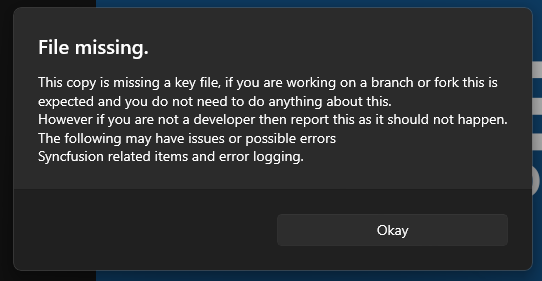
If you have cloned StoryCAD to a separate repo and built it for the first time then you may be surprised to see this screen. It indicates a key file related to licensing is missing from your local clone. These licenses are in effect for the storybuilder.org repo only. The missing licenses won’t cause any issues with the app functioning, but your copy won’t report errors via Elmah.io and you may see pops relating to syncfusion licensing errors. Regardless, congratulations on successfully compiling StoryCAD.
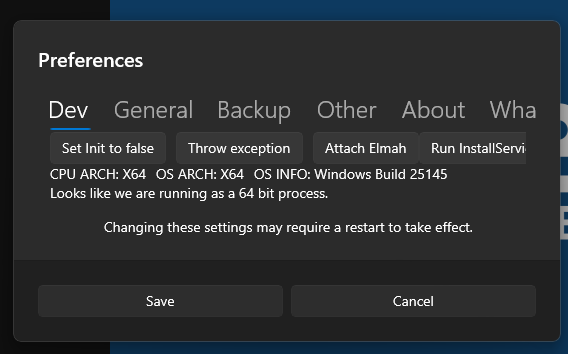
If StoryCAD notices you have a debugger attached to the process, the developer menu will appear. This shows info about the computer and may contain buttons to test some parts of the StoryCAD. If running without a keyfile (which is standard for those contributing to the StoryCAD project.) then some of these buttons may not work or cause intended behavior.
As such this menu may be removed, updated or abandoned at any point.
Developer Notes
- Single Instancing whilst debugging in VS does work however the window may not be brought to the front and may only flash as VS will attempt to hide it again if it wasn’t shown, to test Single Instancing related stuff do the following:
- Run the app in VS (or Deploy.) so that it installs the app on your system.
- Close the app.
- Now launch the app from elsewhere (Such as the start menu or taskbar)
- Hide the app behind other windows or minimise it
- Attempt to launch the app again
- The first instance of the app should now be brought on top of all the window
Building for macOS App Store
StoryCAD 4.0+ supports macOS via the Uno Platform. This section covers building and submitting to the Mac App Store.
For the complete build guide, see devdocs/macos-app-store-build-guide.md.
Prerequisites
- macOS with Xcode Command Line Tools
- .NET SDK (version specified in
global.json) - Apple Developer account with certificates:
Apple Distributioncertificate (for signing the app)3rd Party Mac Developer Installercertificate (for signing the PKG)
- App Store provisioning profile for
com.storybuilder.storycad - Transporter app (from Mac App Store)
Automated Build
Use the build script (recommended):
# Build with current version
./scripts/build-macos-appstore.sh

# Build and auto-increment version
./scripts/build-macos-appstore.sh --bump
Manual Build Process
1. Publish the App
UNO Platform creates the .app bundle automatically with PackageFormat=app:
dotnet publish StoryCAD/StoryCAD.csproj -c Release -f net10.0-desktop -r osx-arm64 \
  -p:SelfContained=true \
  -p:PackageFormat=app \
  -p:UnoMacOSEntitlements=Platforms/Desktop/Entitlements.plist \
  -p:UnoMacOSIncludeCreateDump=false
This produces StoryCAD/bin/Release/net10.0-desktop/osx-arm64/publish/StoryCAD.app with the bundle structure, icon, and Info.plist already set up.
2. Post-Publish Fixups
APP_DIR="StoryCAD/bin/Release/net10.0-desktop/osx-arm64/publish/StoryCAD.app"

# Embed provisioning profile and clear quarantine
cp ~/Downloads/StoryCAD__Provisioning_Profile.provisionprofile "$APP_DIR/Contents/embedded.provisionprofile"
xattr -cr "$APP_DIR"

# Move json files to Resources (required for App Store validation)
mv "$APP_DIR/Contents/MacOS/StoryCAD.deps.json" "$APP_DIR/Contents/Resources/"
mv "$APP_DIR/Contents/MacOS/StoryCAD.runtimeconfig.json" "$APP_DIR/Contents/Resources/"
ln -s ../Resources/StoryCAD.deps.json "$APP_DIR/Contents/MacOS/StoryCAD.deps.json"
ln -s ../Resources/StoryCAD.runtimeconfig.json "$APP_DIR/Contents/MacOS/StoryCAD.runtimeconfig.json"
3. Sign the App
Sign in this exact order (do NOT use --deep):
CERT="Apple Distribution: StoryBuilder Foundation (3T4DPS2D5Y)"
ENTITLEMENTS="StoryCAD/Platforms/Desktop/Entitlements.plist"

# Sign dylibs individually
find "$APP_DIR/Contents/MacOS" -name "*.dylib" \
  -exec codesign --force --sign "$CERT" {} \;

# Sign main executable with entitlements
codesign --force --options runtime --sign "$CERT" --entitlements "$ENTITLEMENTS" "$APP_DIR/Contents/MacOS/StoryCAD"

# Sign the bundle
codesign --force --options runtime --sign "$CERT" --entitlements "$ENTITLEMENTS" "$APP_DIR"
4. Create PKG Installer
xattr -cr "$APP_DIR"
productbuild --component "$APP_DIR" /Applications \
  --sign "3rd Party Mac Developer Installer: StoryBuilder Foundation (3T4DPS2D5Y)" \
  ~/Desktop/StoryCAD-4.0.0.pkg

# Delete build .app after creating pkg (prevents installer relocation bug)
rm -rf "$APP_DIR"
5. Upload via Transporter
Open Transporter app and drag the PKG file to upload to App Store Connect.
Before Each Upload
Increment CFBundleVersion in StoryCAD/Platforms/Desktop/Info.plist:
<key>CFBundleVersion</key>
<string>9</string>  <!-- Increment this number -->
Common Issues
| Error | Fix |
|---|---|
| Bundle version already used | Increment CFBundleVersion in Info.plist |
| App sandbox not enabled | Ensure entitlements include com.apple.security.app-sandbox |
| Missing provisioning profile | Embed profile at Contents/embedded.provisionprofile |
| Quarantine attribute | Run xattr -cr after copying provisioning profile |
| json files rejected by App Store | Move .deps.json/.runtimeconfig.json to Contents/Resources/ with symlinks |
| Installer relocation bug | Delete build .app after creating PKG |