Workflow Reference
A workflow is one job of story development that Collaborator can do with you: turn a story idea into a premise, fill in a problem’s goal and motivation, describe a setting through the senses. Each one reads the story elements that job needs, proposes text for particular fields on those elements, and leaves the decision to you. The pages in this section describe every workflow: what it is for, what it needs before it can run, which fields it writes, and what it leaves alone.
How the list is organized
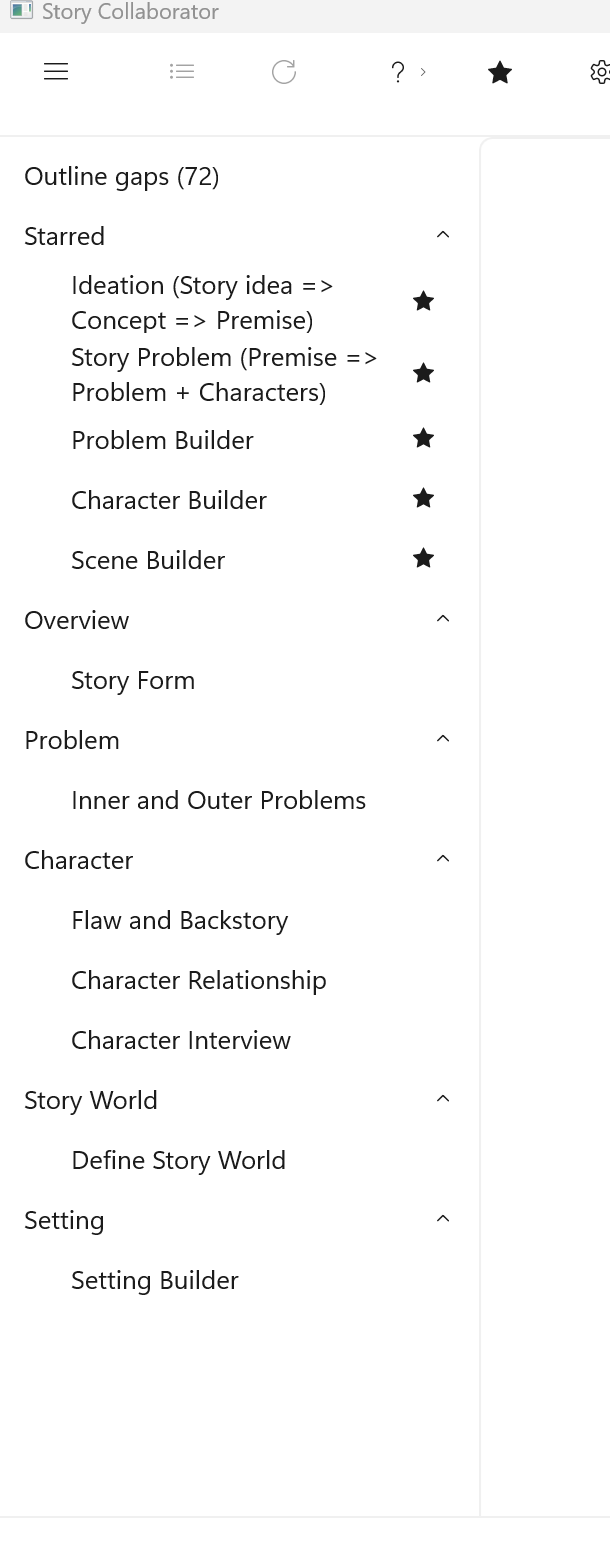
The workflow list occupies the left side of the Story Collaborator window. It opens short and grows only when you ask, because a long menu is not much help when you want to run one job. From the top, you will see up to three bands.
Outline gaps appears first, and only when your outline has empty required fields. It is not a workflow in the usual sense but a page that lists what is missing and where to go to fill it. Outline Gaps explains it.
Starred comes next and holds the workflows you have marked with a star. When you first open Collaborator, six are starred for you, one for each stage of outlining: Ideation (Story idea => Concept => Premise), Story Problem (Premise => Problem + Characters), Problem Builder, Character Builder, Setting Builder, and Scene Builder. You can change that set at any time; Opening Collaborator shows how.
The remaining workflows are filed under the story element each one works on: Overview, Problem, Character, Story World, Setting, and Scene. A group appears only when it holds a workflow you haven’t starred, so with the starting stars there is no Setting or Scene group. These groups start closed. Click a group heading to open it. Nothing is hidden; a workflow that is not starred is one click away in its group.
How a workflow chooses its story element
Most workflows work on one element at a time, and Collaborator has to know which. The Story Overview and the Story World are chosen for you, because an outline has only one of each. For every other kind of element, a picker dialog opens before anything runs. If your outline has no element of that kind, the picker offers to create one. Otherwise you choose one from the list or create another. When a workflow follows a link in your outline, for instance to the protagonist of the problem you just picked, it uses that character without asking, or preselects it in the picker if the link is optional.
The picker is also your chance to stop. Cancel it and the workflow does not run.
Where the description appears
When you click a workflow, its name appears on the top bar and a short description appears in the center of the window. The same descriptions appear in the Customize Workflows dialog, next to each checkbox. These are one-sentence statements of purpose. The fuller account of each workflow is in the pages below.
The workflows
- Outline Gaps: the generated list of empty required fields, and how Collaborator judges where your outline stands.
- Overview Workflows: Ideation (Story idea => Concept => Premise), Story Problem (Premise => Problem + Characters), and Story Form.
- Problem Workflows: Inner and Outer Problems, and Problem Builder.
- Character Workflows: Character Builder, Flaw and Backstory, Character Relationship, and Character Interview.
- World and Setting Workflows: Define Story World, and Setting Builder.
- Scene Workflows: Scene Builder.